Connect the USB Flash Drive to the USB port of the MacBook.
Note: If connecting a USB stick for the first time, please allow permissions for access if prompted
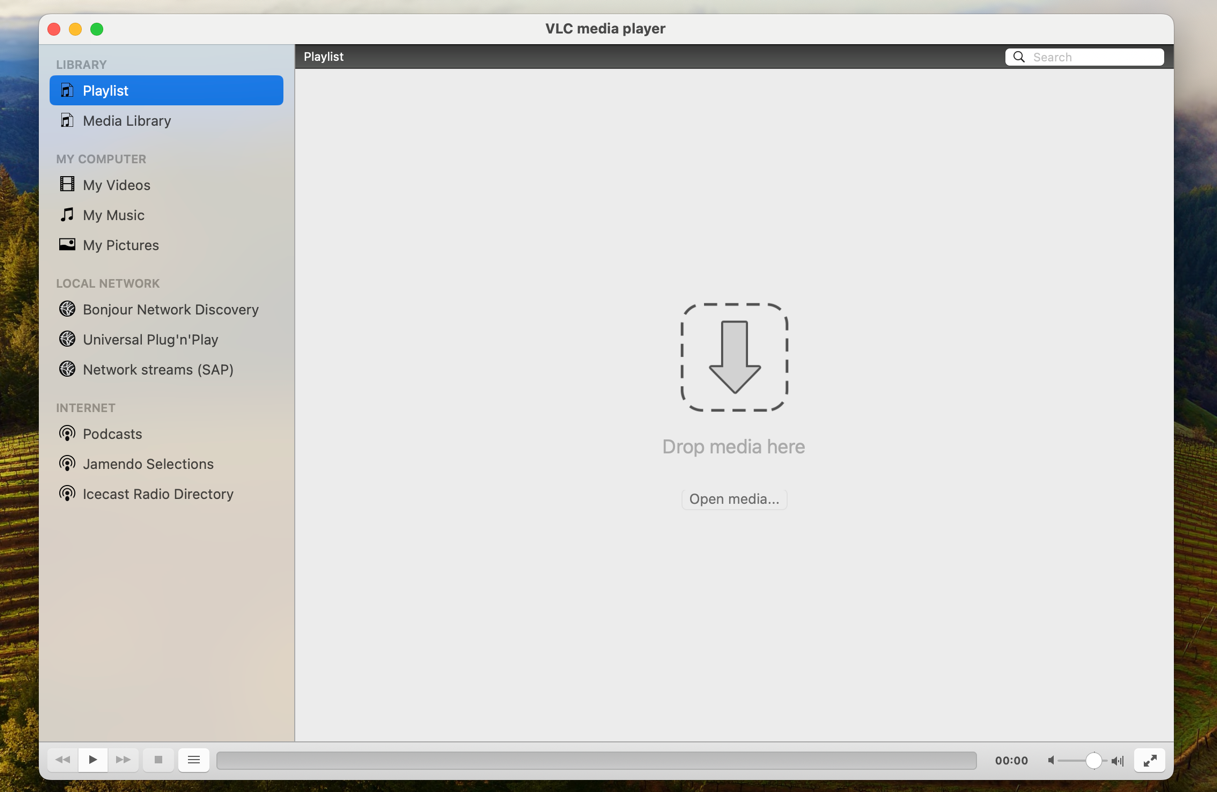
2. Launch VLC Media Player App.
Note: If launching for the first time, accept any prompt that ‘VLC would like access to the content of ‘removeable media’’ such as the USB Flash Drive.
3. Click on ‘Open media…’
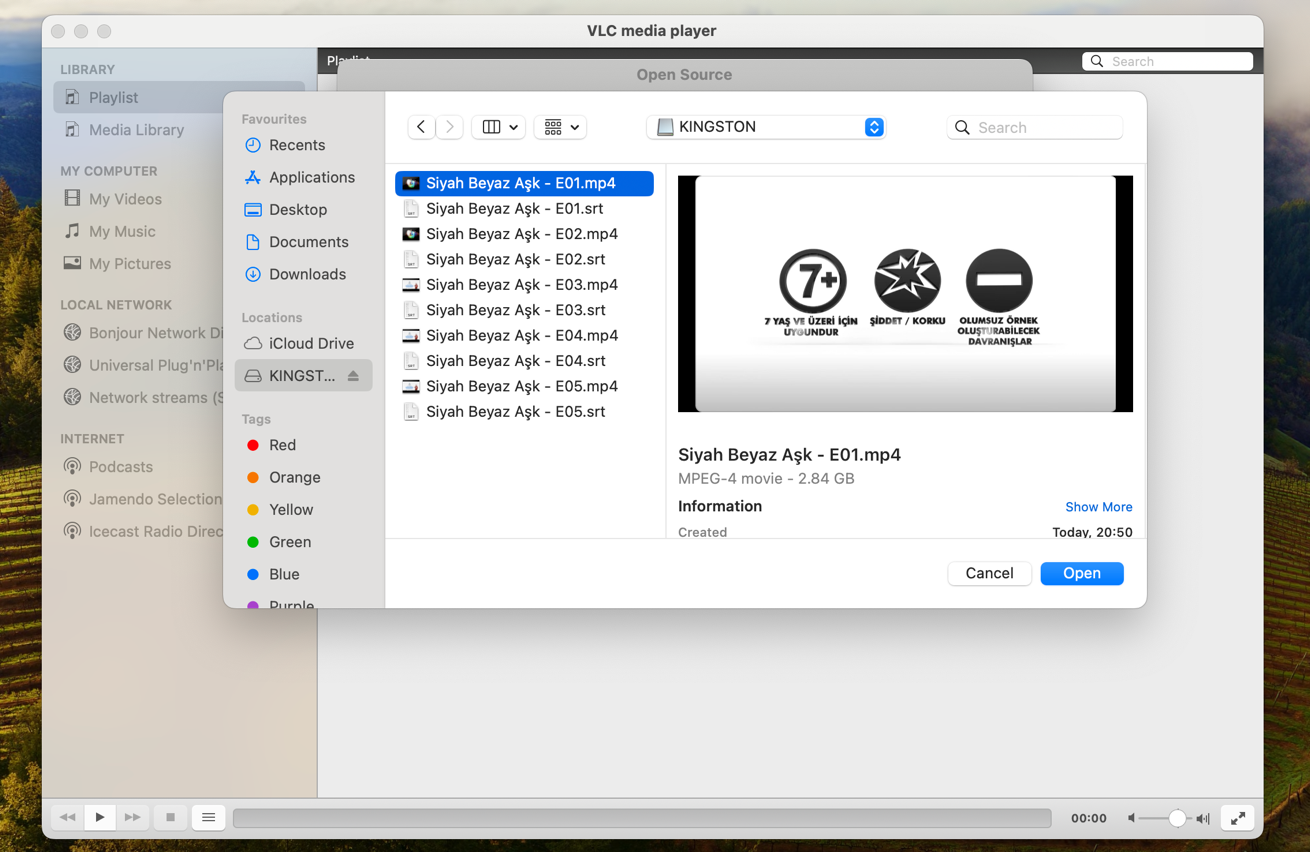
5. Down the left side, under Locations, click on the USB Flash Drive option.
a. Browse the content of the USB stick and select the .MP4 or .MKV Episode number.
Note: Please do not select the .srt options – these are caption files, not video.
b. Click ‘Open’.
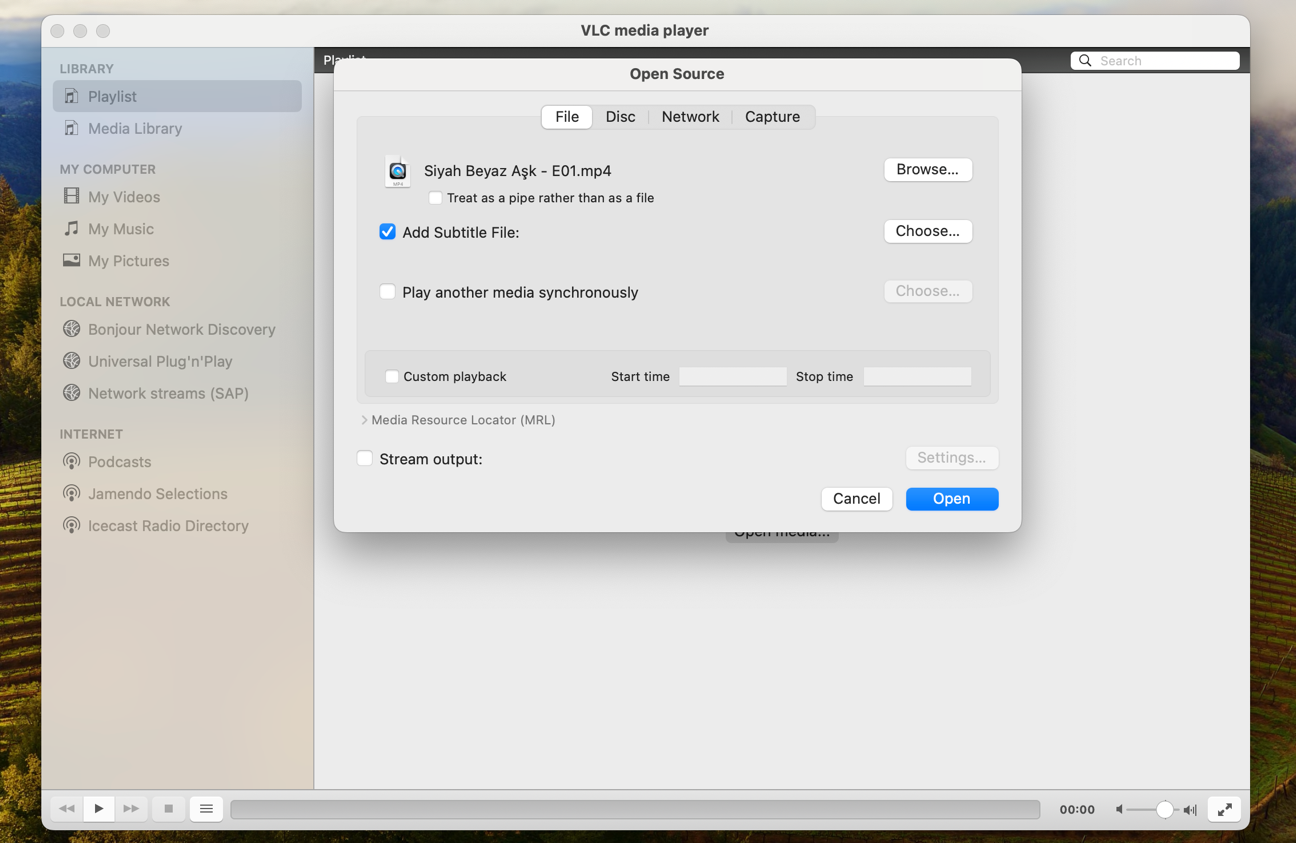
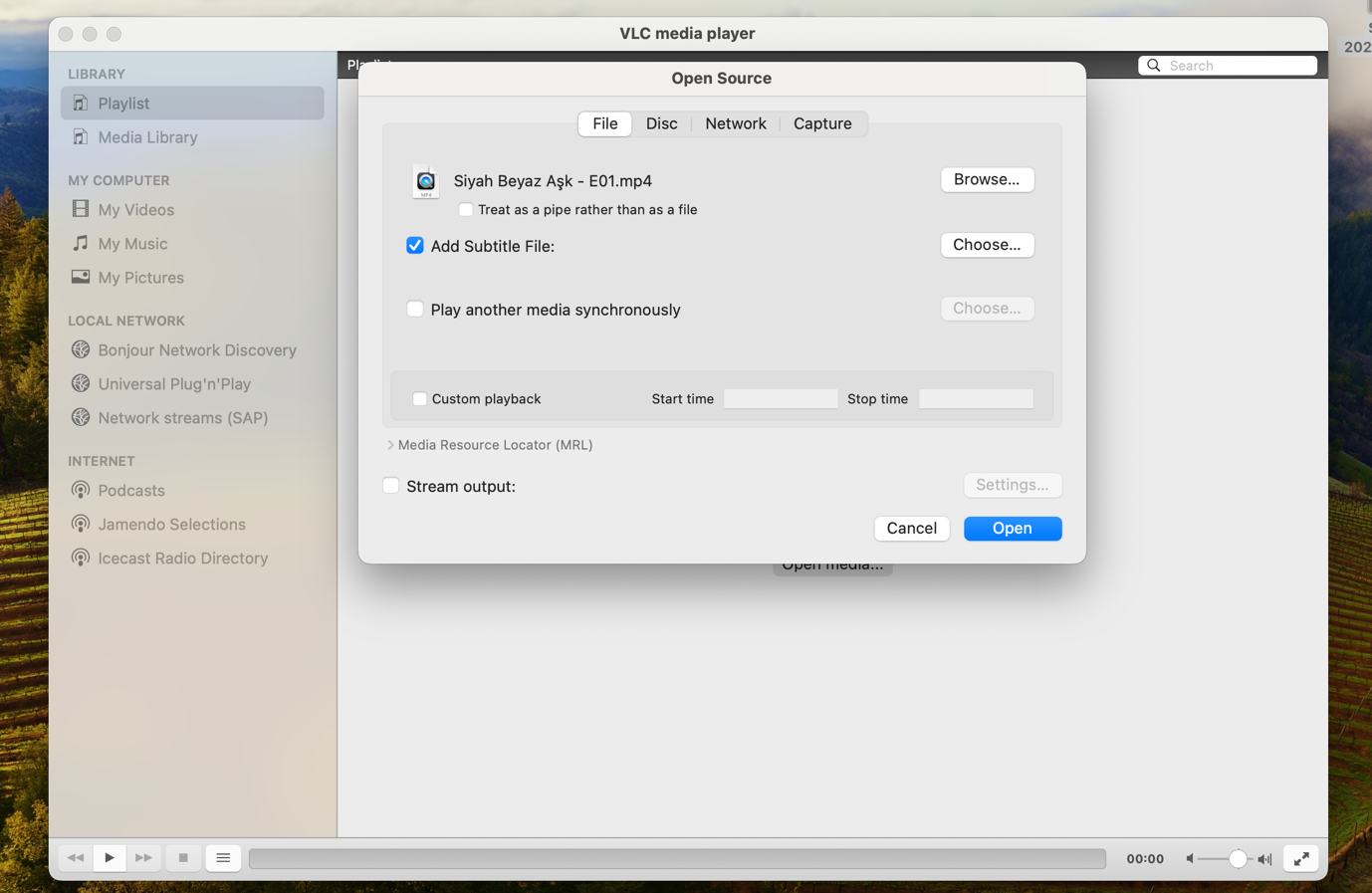
6. Tick the box: ‘Add Subtitle File’.
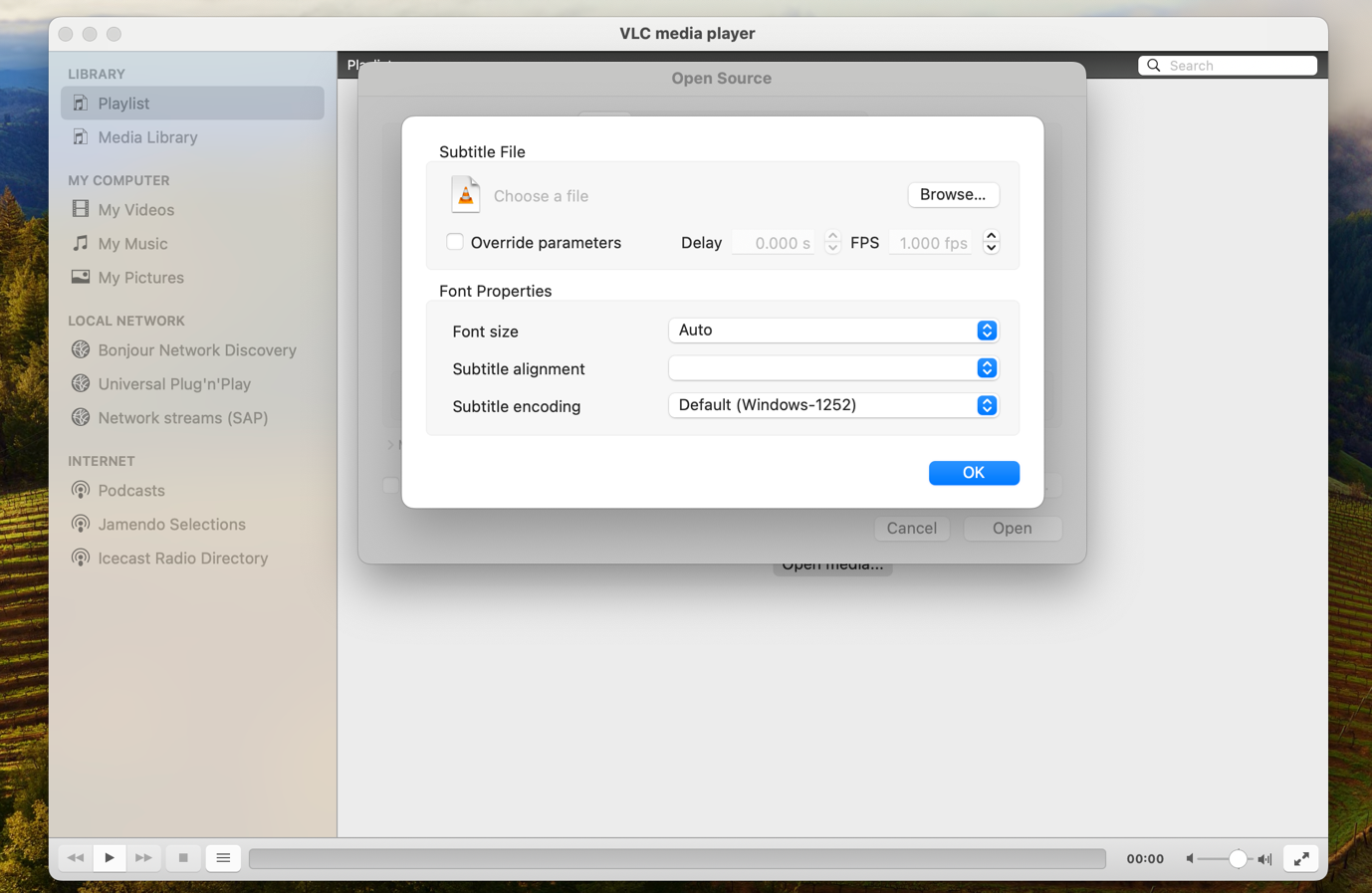
a. To customise the subtitles colour / font etc, click ‘Choose’.
7. Make any changes to font appearance or to leave as default (preferred), click ‘OK’.
8. Click ‘Open’.
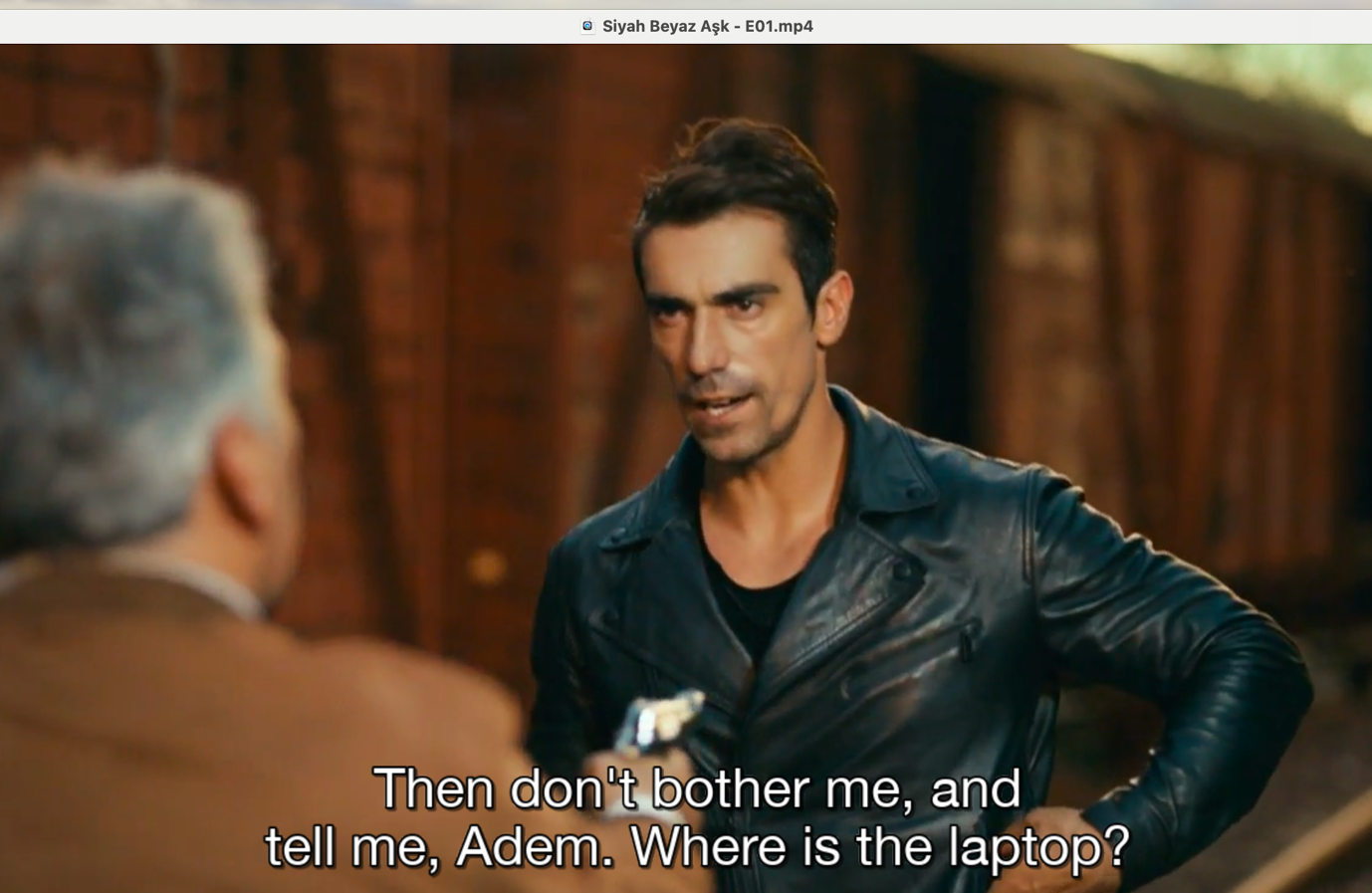
9. The Video will play with the subtitles loaded on screen. Repeat the steps for other episodes.